What is Knotis?
[[Knotis]]
- Knotis is a teaching-focused extension to Zensical, distributed as a Python package with a command-line interface.
- It provides tools for organizing instructional materials.
- Instructional notes are often spread across many pages.
- A concept such as survey may be introduced on one page, explained on another, and used throughout the rest of the course.
- Users who encounter the concept later have no easy way to find where it was first introduced or how it relates to other topics.
- With Knotis, mark a concept once with double brackets,
[[ ]].- Every occurrence of that concept across the course becomes connected and mapped.
- A concept such as survey may be introduced on one page, explained on another, and used throughout the rest of the course.
[[Features at glance]]
[[Outlining]]
- Knotis turns indentation into structure: bullets, numbered lists, Markdown tables, images, Mermaid diagrams, admonitions, code blocks, and videos form parent–child and sibling relationships.
- These relationships become graph edges and determine the context shown in the pane.
- Except for headings, each item is written with a bullet.
[[Bullets]]
- Grandparent bullet
- Parent bullet 1 (parent sibling 1)
- Parent bullet 2 (parent sibling 2)
- Child bullet 1 (child sibling 1)
- Child bullet 2 (child sibling 2)
[[Numbered list]]
- Grandparent item
- Parent item 1 (parent sibling 1)
- Parent item 2 (parent sibling 2)
- Child item 1 (child sibling 1)
- Child item 2 (child sibling 2)
[[Markdown table]]
-
Sample markdown table:
-
Syntax Description Header Title Paragraph Text - Child bullets and numbered lists are supported.
-
[[Image]]
- Sample image:
- Child bullets and numbered lists are supported.
[[Mermaid diagram]]
-
Sample Mermaid diagram:
-
flowchart LR subgraph O1[Box 1] direction TB A[A] end subgraph O2[Box 2] B[B] end subgraph O3[Box 3] C[C] end subgraph O4[Box 4] D[D] end A -.->|Relationship| B B -.->|Relationship| C C -.->|Relationship| D- Child bullets and numbered lists are supported.
-
[[Admonition]]
-
Sample admonition:
-
Sample admonition box
- Grandparent bullet
- Parent bullet 1 (parent sibling 1)
- Parent bullet 2 (parent sibling 2)
- Child item 1 (child sibling 1)
- Child item 2 (child sibling 2)
- Child bullets and numbered lists are supported after a blank line.
- Grandparent bullet
-
[[Code block]]
-
Sample code block:
-
- Child bullets and numbered lists are supported.
-
[[Video]]
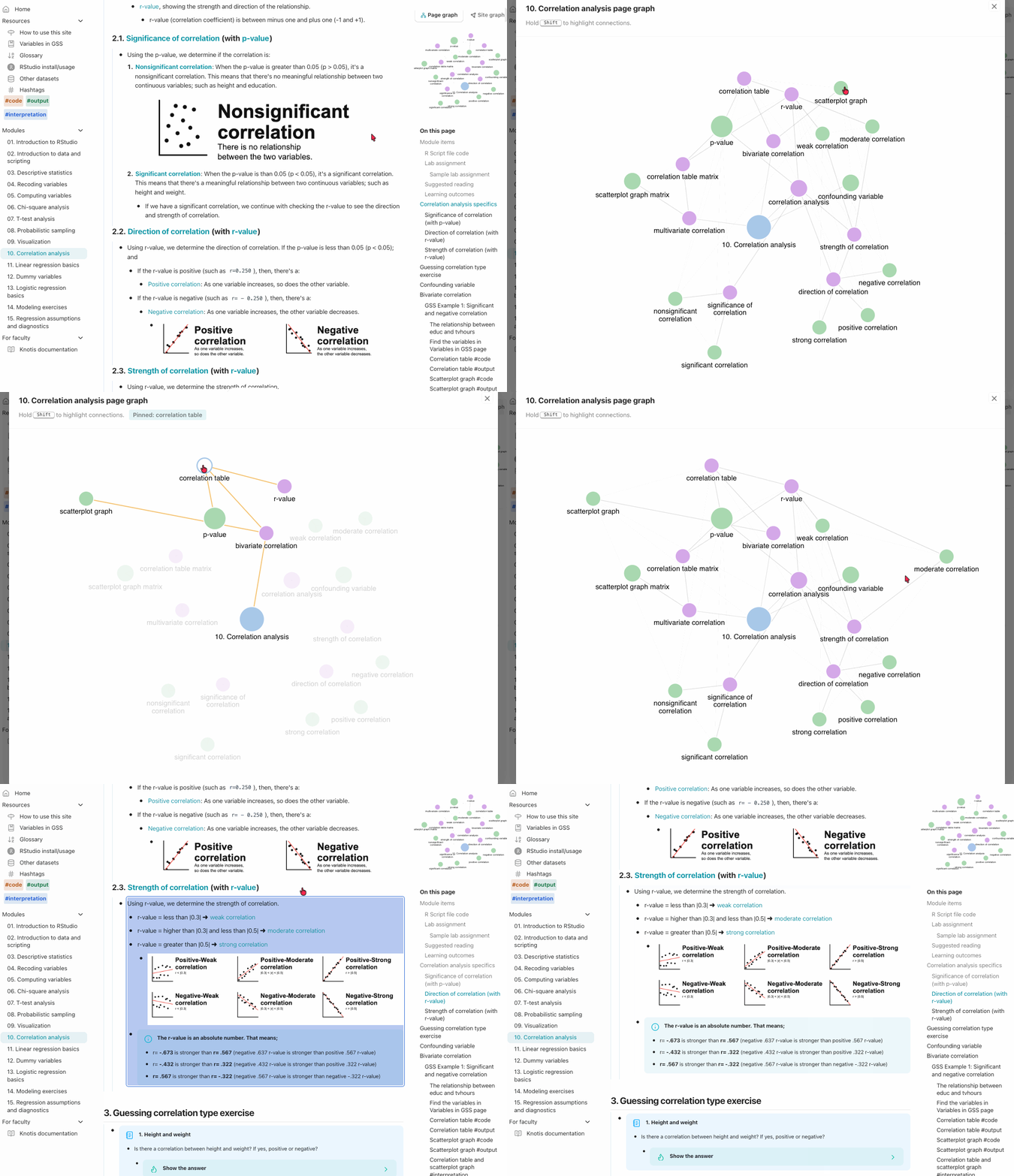
- Sample video:
- Child bullets and numbered lists are supported.
[[Wikilink]]
- Wikilinks mark important terms as concepts that are connected across the site.
- A wikilink is created by placing a concept inside double brackets,
[[ ]]. - The bracketed text, such as [[pane]], becomes an interactive concept link wherever it appears.
- In the examples above, Wikilink in the heading and pane are both wikilinks.
- A wikilink is created by placing a concept inside double brackets,
[[Reference]]
- The
|refflag marks important passages for a concept. - Add
|refto a wikilink, such as[[sample reference|ref]].- [[sample reference|ref]]
- Instead of showing every occurrence of the concept, the pane can show only the content marked with
|ref.
[[Pane]]
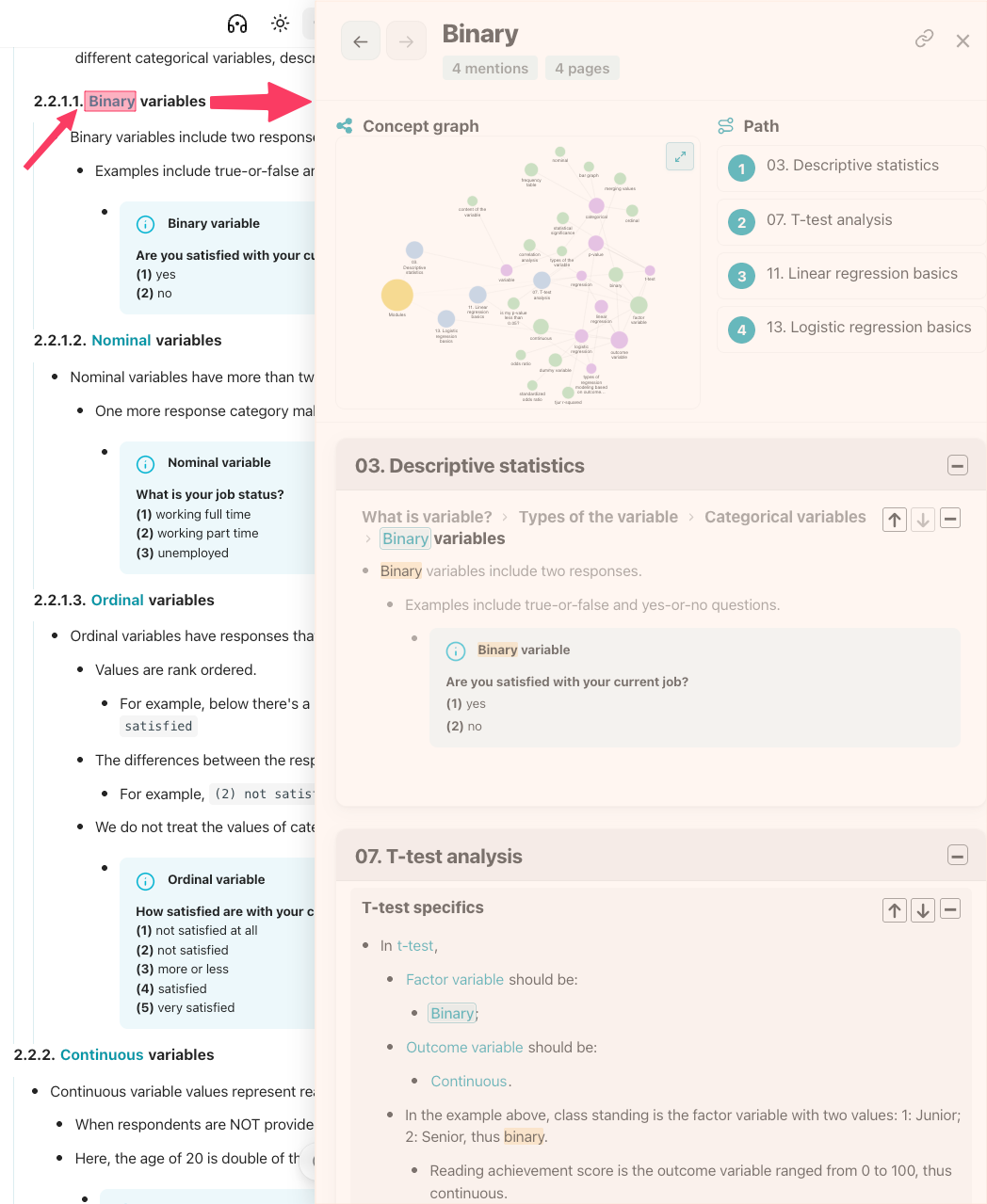
- The pane is a side panel that opens when you click a [[wikilink]].
- It shows every occurrence of that concept or hashtag across the site, along with its surrounding context.
- Click Pane in the heading or wikilink in the text above to open the pane.
[[Graphs]]
- Mark concepts with a [[wikilink]] to show how they connect across pages and with one another.
- Three graphs are automatically created from those connections:
- (1) [[Site graph]], (2) [[Page graph]], and (3) [[Concept graph]]
- Three graphs are automatically created from those connections:
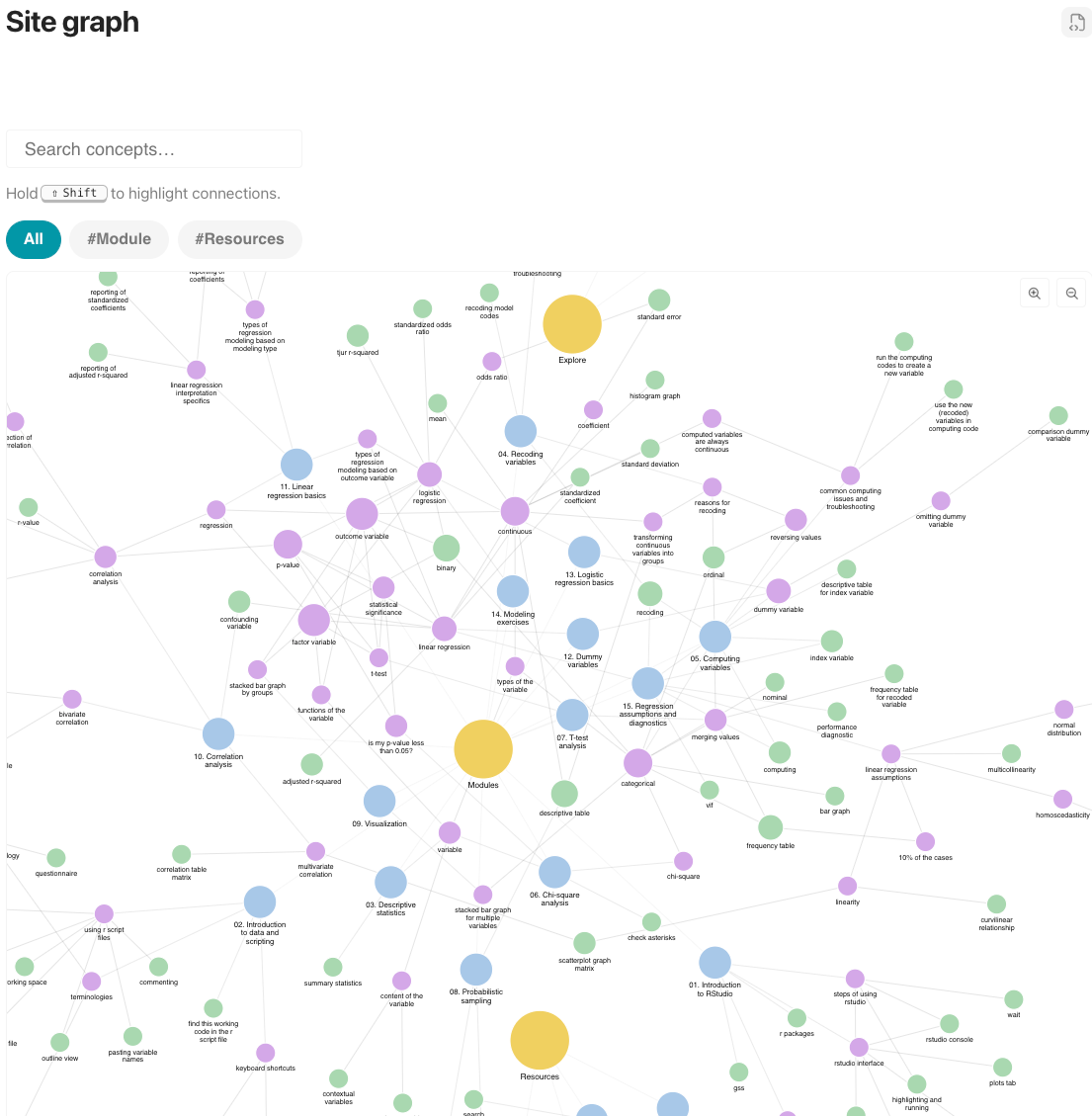
[[Site graph]]
- The full course map showing all the wikilinks.
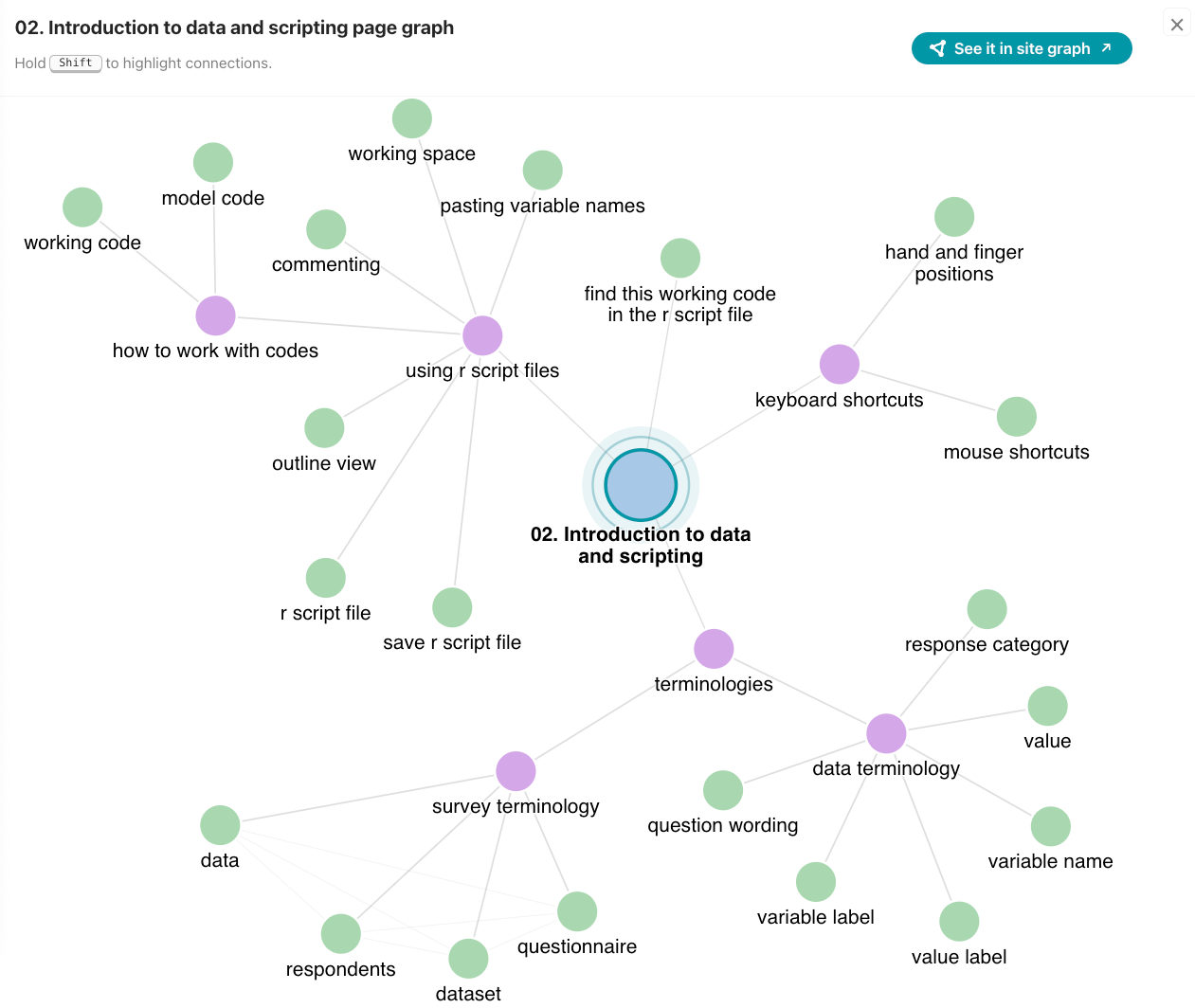
[[Page graph]]
- One page and its concepts.
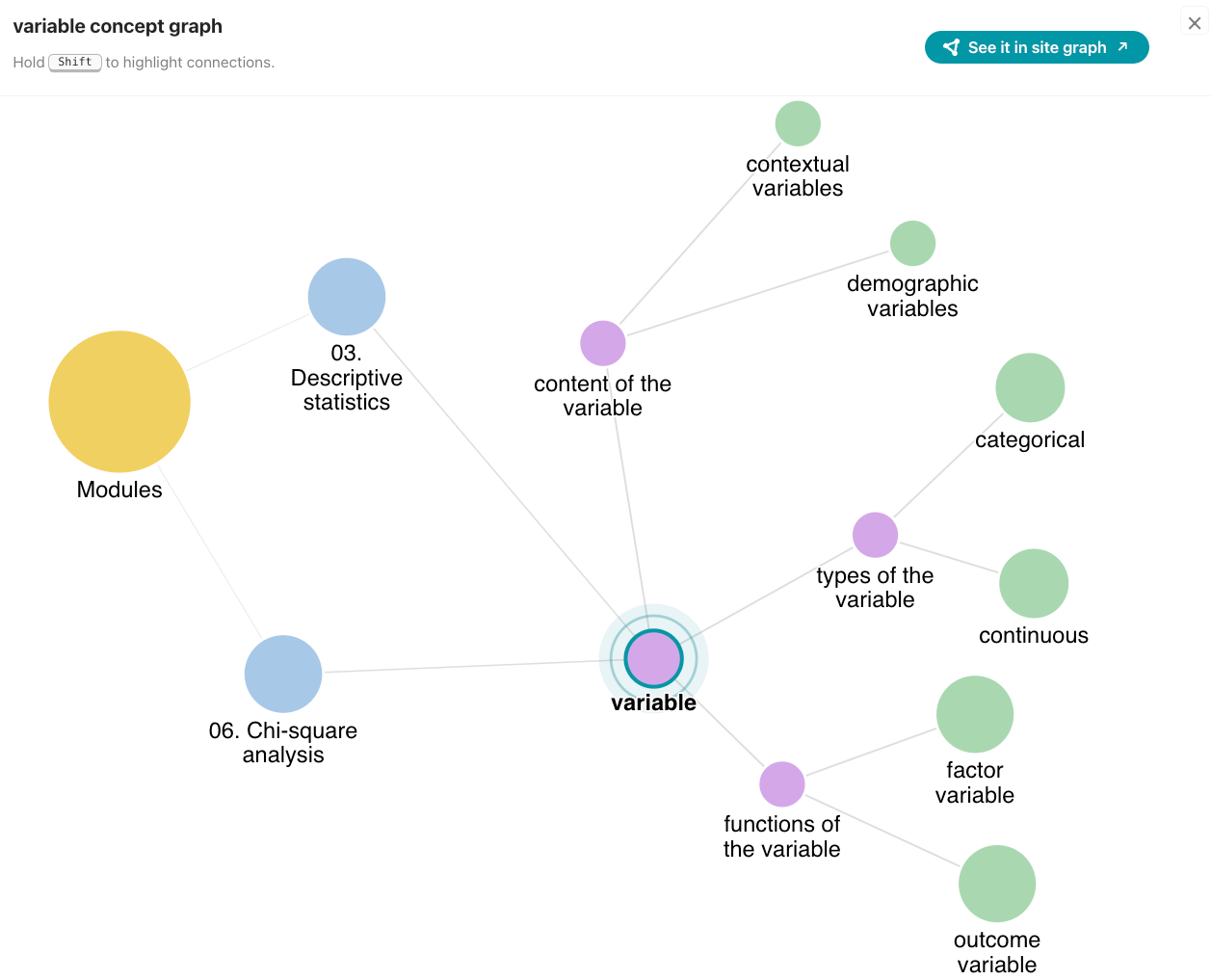
[[Concept graph]]
- One wikilink concept, its relationship with other concepts and its path across other pages.
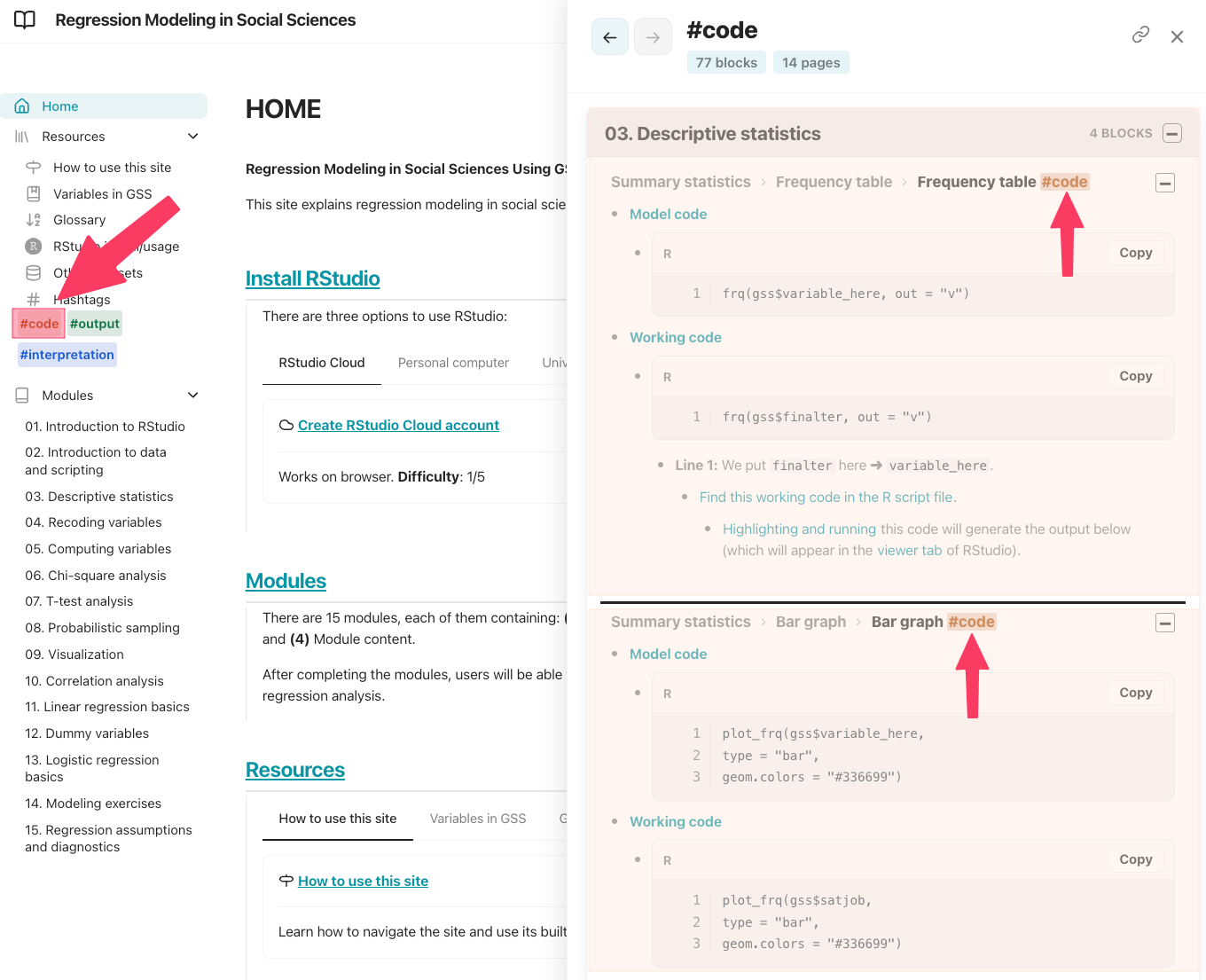
[[Content tags]]
- A
#taglabels a section by content type, not by concept.- Clicking a
#tagin the navigation bar opens every section across the site.
- Clicking a
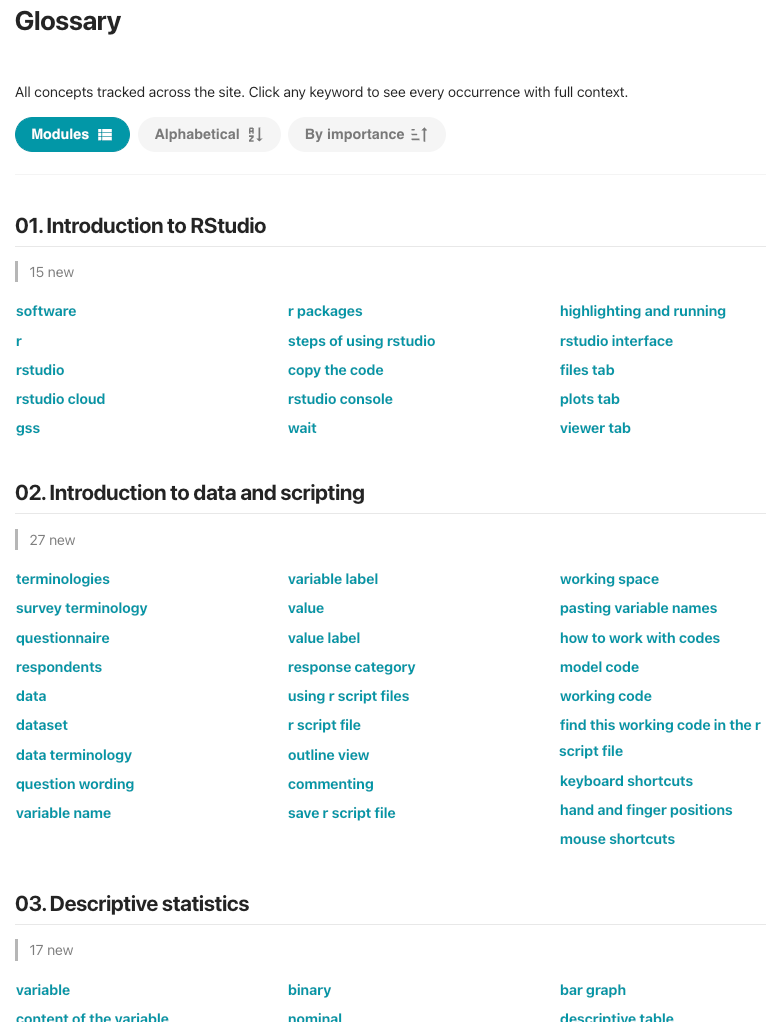
[[Glossary]]
- The Glossary is an auto-generated page that lists every [[wikilink]] concept mentioned in the site.
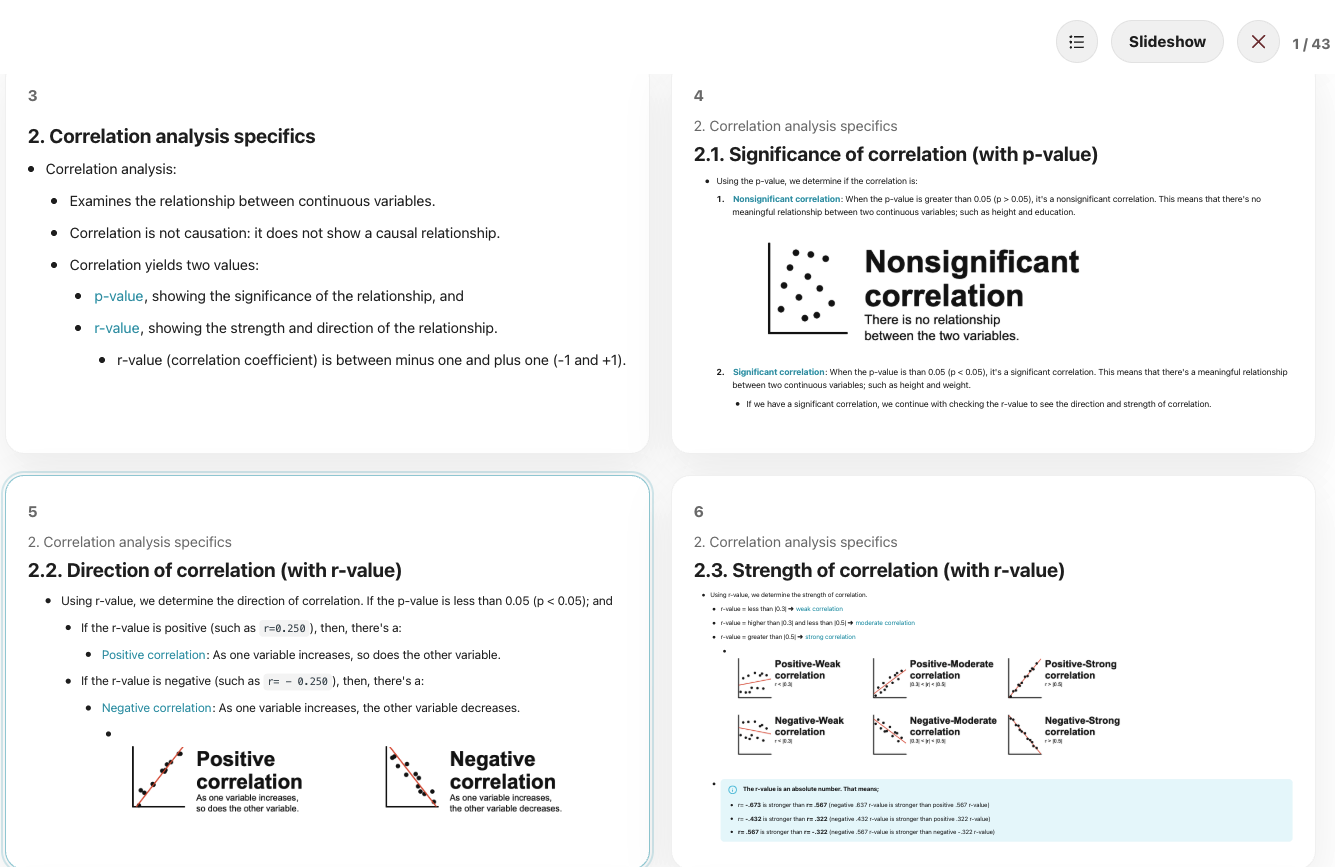
[[Slide mode]]
- A page turns into a full-screen presentation.
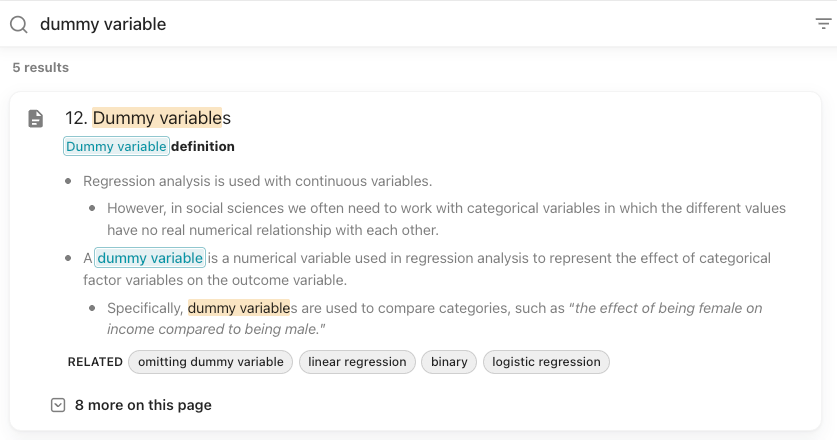
[[Search]]
- Search finds concepts, pages, and teaching content across the entire site or specific sections.
- Results show the matching part with its surrounding context.
- Click a result to open that part directly.
- Click a result to open that part directly.
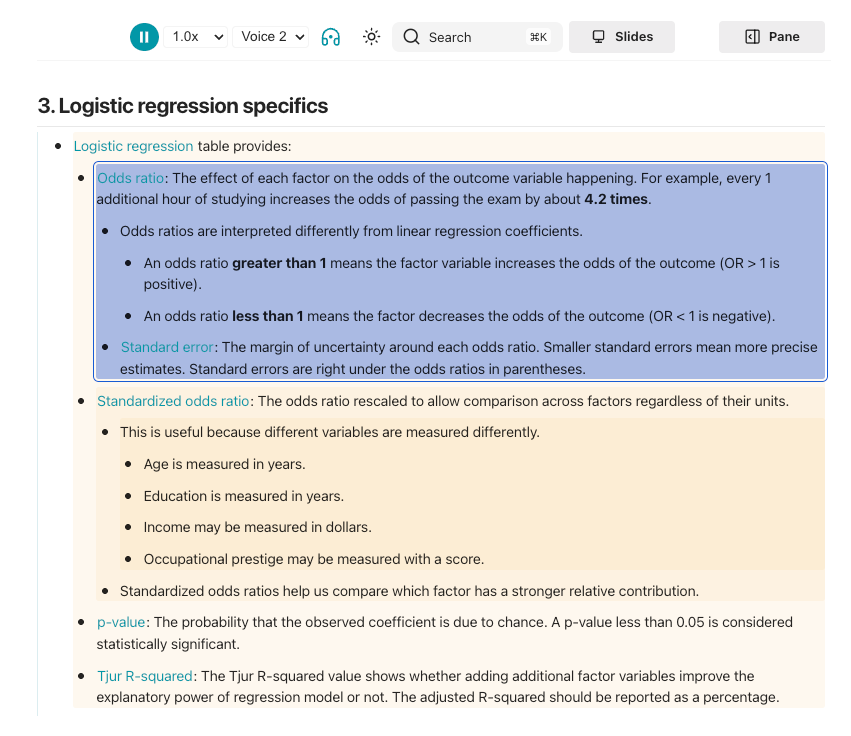
[[Read aloud]]
- A built-in text-to-speech button that reads a lesson page aloud, using the browser's own voice.
[[Video controls]]
- Lightweight controls for videos, GIFs and MP4s, with the closed-caption support.