Read aloud
[[Read aloud]]
- Read aloud is a built-in text-to-speech control for pages.
- It uses the voices already available in the reader's browser or device.
- It is useful when users want to listen while reading, review a page hands-free, or use the site with audio support.
[[Read aloud]] play
- Click the headphones icon in the header.
- Choose the reading speed.
- Choose a voice.
- Click play to start from the beginning of the page.
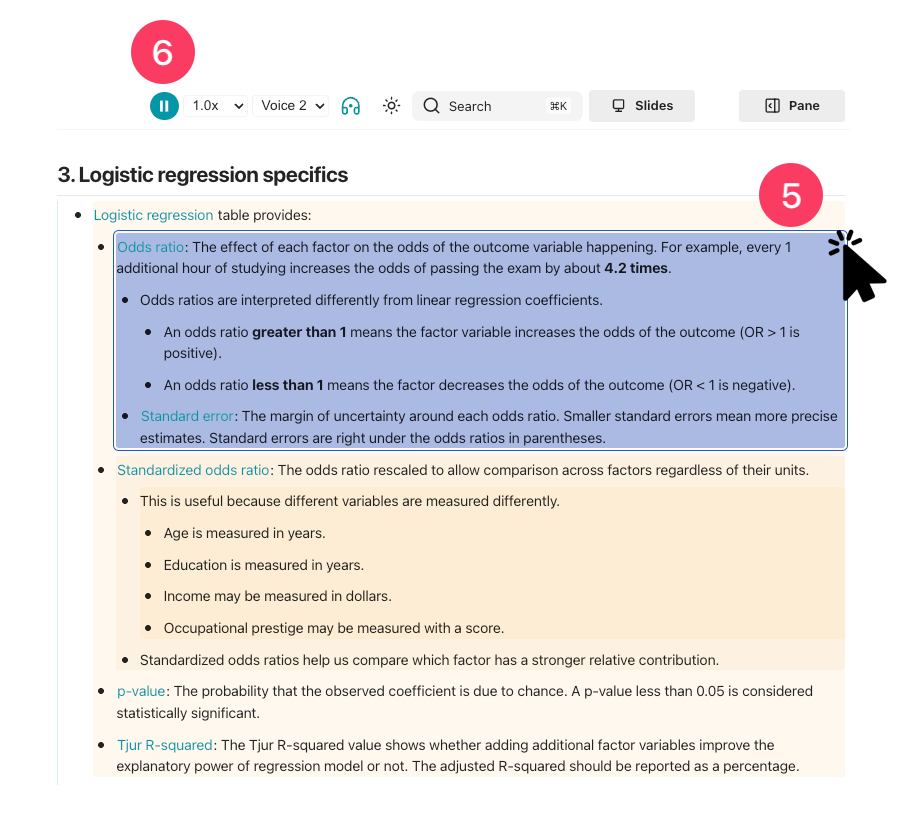
- Click a heading, bullet, paragraph, or quote to start reading from that point.
- Click the headphones icon again or press Esc to stop.

What gets read
- [[Read aloud]] reads the main page content:
- Headings,
- Bullets and numbered lists,
- Paragraphs,
- Block quotes.
- It skips page controls and layout elements:
- Navigation,
- Sidebars,
- Code blocks,
- Tables,
- Figures,
- Diagrams.
- Wikilink aliases are read as the visible text on the page.
[[concept|visible label]]is read asvisible label.
- Changing pages stops the current reading.
Read aloud #settings
-
Read aloud is customized in [[zensical.toml]] file.
-
- Line 2: Default is
true.falsehides the read-aloud control.
- Line 2: Default is
-
-
Content tags are customized in [[zensical.toml]] file.
-
- Line 2: Default is
true.falseturns off the generated content tags page.- Panes and search can still use content tags.
- Line 3: Default is
true.falsehides tag chips in the sidebar.
- Line 2: Default is
-
[[Skipping sections]] #settings
-
A heading can be skipped by adding
data-readaloud-excludeto the heading.-
- The heading and everything under it is skipped until the next heading at the same level.
-