Author the site
[[scaffold|Scaffolded]] page files and section folders
-
Inside
docs/, there are template folders and pages.-
my-site-folder/
├── docs/
│   ├── section-1/
│   │   └── page-1.md … page-5.md
│   ├── section-2/
│   │   └── page-6.md … page-10.md
│   ├── explore/
│   │   ├── content-tags.md
│   │   ├── glossary.md
│   │   └── site-graph.md
│   ├── assets/
│   │   └── attachments/
│   │       ├── section-1/
│   │       │   └── page-1/ … page-5/
│   │       └── section-2/
│   │           └── page-6/ … page-10/
│   ├── overrides/
-
Edit a section folder and a page file #settings
- First, rename
section-1in the local directory, such asmodules,lessons,resources. - Then, rename the
page-1.mdsuch asintroduction-to-statistics -
Each template page comes with a [[YAML]] at the top. Edit the page title, and put the section name as a [[page tags|page tag]].
-
-
Then, open [[zensical.toml]] file and edit the
Site treesection:
-
-
-
Folder and file names #tip
- Use hyphens
-or underscores_instead of spaces in folder and file names.- This helps prevent problems in URLs, terminal commands, and publishing tools.
- Use hyphens
Create a section folder and a page file
- Alternatively, instead of using template folder and pages files (.md), delete them and create your own.
- Open the file in [[VS code]] and use [[Knotis VS Code extension]]
- Click
insert front matterbutton, which will paste a template [[YAML]], and edit inside.
- Click
- Open the file in [[VS code]] and use [[Knotis VS Code extension]]
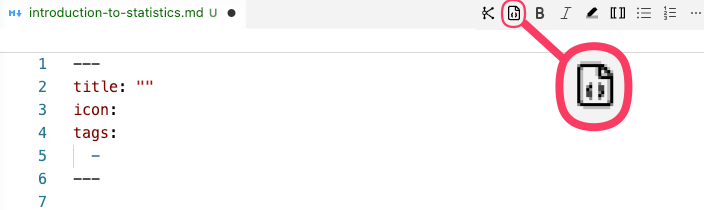
[[Generated folders and page files]]
[[Explore folder]]
-
The
docs/explorefolder and the following three files are automatically created:- [[content tags|content-tags]].md
- [[glossary]].md
- [[site graph|site-graph]].md
- These files are editable in a limited way:
- They can be moved them to another folder.
- They can be renamed, as long as the matching path in zensical.toml is updated.
- [[YAML]] values as title, icon, and tags can be changed.
- The
knotis_generatedvalue should not be changed.- Changing or removing that argument can make the generated page stop being recognized.
- The
[[Assets folder]]
-
The
docs/assets/folder is automatically created.-
Organize attachments by section and page #tip
- Inside the existing assets folder, create a folder for each section and a subfolder for each page.
- This keeps images, media, PDFs, and other files grouped with the page where they are used.
- Inside the existing assets folder, create a folder for each section and a subfolder for each page.
-
[[Overrides folder]] #settings
- The
docs/overridesfolder is automatically created.- It contains template files that support site-wide layout and page rendering.
-
For example, a specific page can turn off heading numbers and/or heading guide lines with:
-
- Line 6: Starts the
knotis_contentpage settings. - Line 7: Turns off automatic heading numbers on this page.
- Line 8: Turns off the vertical guide lines that show the outline structure under headings.
- Line 6: Starts the
-
-
[[Content layout]] #settings
- Use the page-level
knotis_contentYAML shown in the [[Overrides folder]] section when only one page should opt out. -
Heading numbers, heading guide lines, and styled sidebar section groups can be turned off for the whole site in [[zensical.toml]].
-
- Line 2:
heading_numbering = trueadds automatic section numbers such as1.,1.1., and1.1.1..- Set it to
falseto turn off heading numbers across the site.
- Set it to
- Line 3:
heading_guides = trueadds the vertical guide lines that show the outline structure under headings.- Set it to
falseto turn off heading guide lines across the site.
- Set it to
- Line 4:
generator = trueadds the Knotis and Zensical footer attribution.- Set it to
falseto hide.
- Set it to
- Line 5:
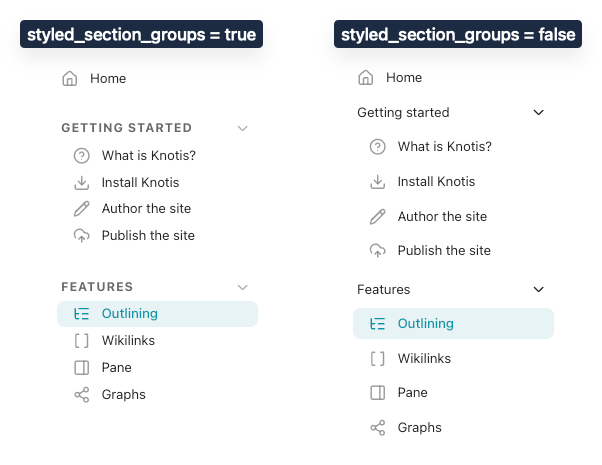
styled_section_groups = trueuses the Knotis navigation bar section-group styling.- Set it to
falseto use the default navigation styling.
- Set it to
- Line 2:
-
- Use the page-level
Before publishing
- This page is for shaping the site before it goes live.
- Before publishing the site,
- Review the Features in the next section.
- Finalize pages, folders, attachments, and
zensical.tomlsettings. - When the site is ready to go online, continue to Publish the site.