Video controls
[[Video controls]]
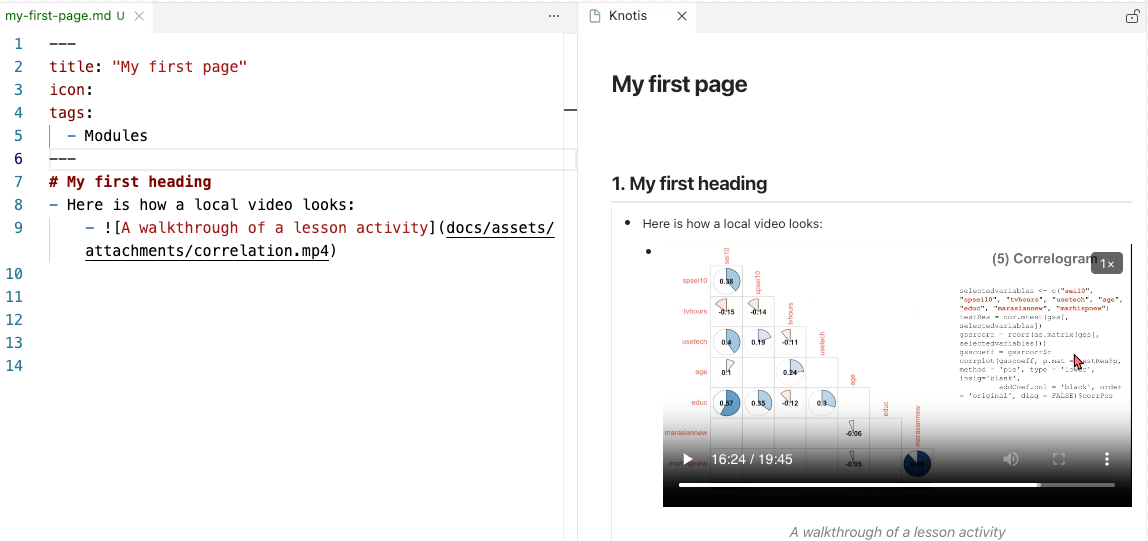
- Video controls turn local
.mp4and.giffiles into media players on the page.- Users can pause playback, change playback speed, and use closed captions when available.
- Media appears with bullets, inside [[slide mode|slides]] and [[pane]].
- The player aligns with the surrounding outline, so it stays connected to the instruction around it.
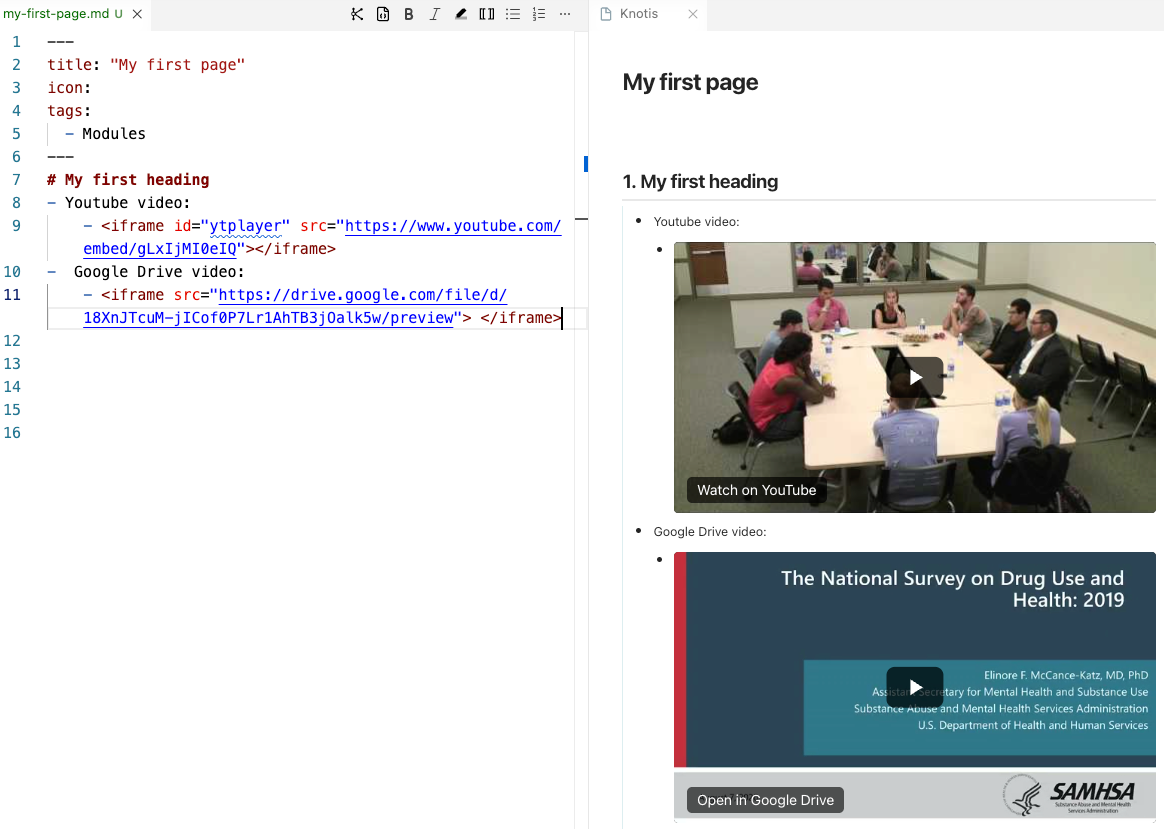
- Externally hosted videos embedded with an HTML
<iframe>also keep their bullet alignment, pane rendering, and slide placement.
[[Local videos]]
[[MP4 files]] and [[GIF files]]
- Save the media file to the [[assets folder]].
- Copy the file:
- Ctrl+C
- Cmd+C
- Place the cursor on the line where the media should go, then press:
- Ctrl+V
- Cmd+V
- Place the cursor anywhere on the pasted text (or highlight), then click the Bullet List icon.
-
Replace the placeholder
[alt text]for the video caption, or leave it blank,[].
-
Here is how a local video looks:
-
Knotis also supports raw local
<video>HTML when a page already has that format.- Start the outline item with
<video>, such as- <video width="640" height="360" controls>. - Put the
<source>line and closing</video>directly under it.
- Start the outline item with
[[Closed captions]]
- Closed captions are supported with
.vttfiles.- Save the caption file in the same folder as the video.
- Use the same file name as the video, but end it with
.vtt.- For example,
lesson-demo.mp4andlesson-demo.gifcan uselesson-demo.vtt.
- For example,
- Captions are added automatically when the site finds the matching
.vttfile.
[[Externally hosted videos]]
- Knotis supports bullets for externally hosted videos through provider
<iframe>embed code.- Use the provider's embed snippet, not the ordinary watch-page link.
- Put the bullet marker before the opening
<iframe>when the video belongs inside the outline. - The embed stays aligned under the bullet in the page, [[pane]], and [[slide mode|slides]].
- YouTube videos should use an
/embed/URL:- Start with
- <iframe src="https://www.youtube.com/embed/M7lc1UVf-VE"></iframe>.
- Start with
- Google Drive videos should use a
/previewURL:- Start with
- <iframe src="https://drive.google.com/file/d/FILE_ID/preview"></iframe>.- Here is how externally hosted videos look:
- Here is how externally hosted videos look:
- Start with