Pane
[[Pane]]
- The pane is the side panel that opens when a [[wikilink]] is clicked.
- It gathers every place that concept appears across the site and shows them together, without leaving the current page.
- Wikilinks and [[content tags]] inside the pane are also clickable, so a user can move between concepts without closing the pane.
- If the concept is defined as [[reference]], the pane only shows the reference card.
- Why [[outlining]] matters:
- The pane builds each occurrence from the bullet and heading hierarchy written in the page.
- A child bullet is shown nested under its parent.
[[Pane view]]
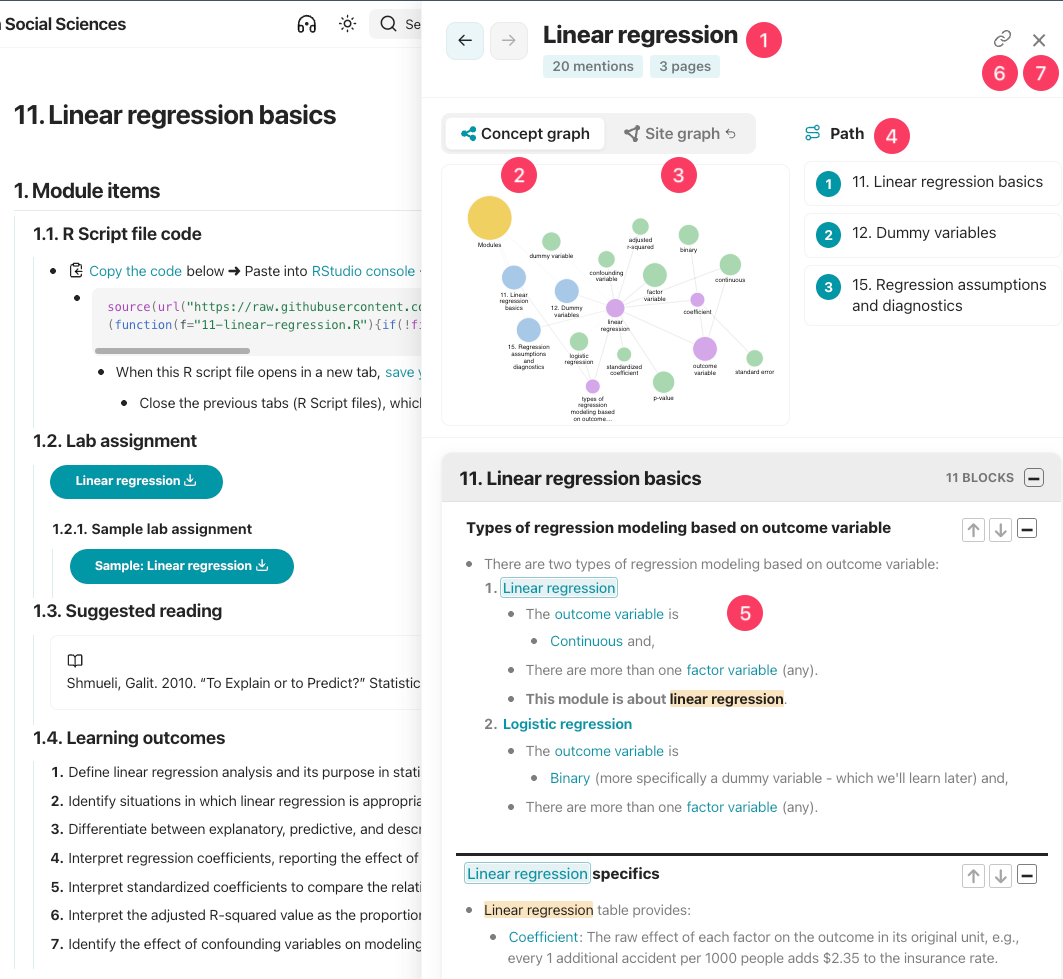
- This is the pane of "linear regression" wikilink.
- This part shows the number of mentions and pages including this concept, with back/forward controls.
- Shows the [[concept graph]] of "linear regression" wikilink.
- Clicking on the graph preview expands the graph.
- Return button : Appears only when the pane was opened from a site, page, or concept graph node click, and returns to that graph.
- "Site graph " appears because linear regression wikilink was clicked on the site graph.
- After reviewing this concept in the pane, users can go back to the site graph with that button.
- [[Path]]: The pages mentioning this concept.
- Clicking on one of the pages on path will scroll the pane.
- The content. Wikilinks are highlighted in blue, same concept without wikilinks are highlighted in yellow.
- Minimize cards to scroll through a long list of entries faster.
- Scroll context with ↑/↓ buttons to read more of the surrounding content, if more context available under the sections.
- Clicking cards to navigate to that exact location on the page and keeps the pane closed.
- Share: Pane card state IDs are included the page URL.
- Copy the URL to share a specific pane view with users; the link opens that pane and its current cards.
- Close button: Closes the pane.
- It can be reopened with the "Pane" button in the heading.
- It restores the views, and the ←/→ buttons navigate backward and forward through the view history.
- This is the pane of "linear regression" wikilink.
Pane #settings
-
Pane is customized in [[zensical.toml]] file.
-
- Line 2: Pane width in pixels.
- Line 3: Sets how much of each card shows before "show more."
- Line 4: Maximum number of list items shown in the initial card window.
- Line 5: Number of lines revealed per ↓ or ↑ context expansion step.
- Line 6: In the by page view, sections or pages are ordered.
- Example: order = ["features", "workflows", "what-is-knotis.md"] → features pages, then workflows, then that page, then the rest.
-
Pane [[path]] #settings
-
Pane path is customized in [[zensical.toml]] file.
-
- Line 2: Default is
true.falseturns the path feature off. - Line 3: Sections or pages that may show path.
- Line 4: Sections or pages to remove from
include_paths.
- Line 2: Default is
-