Slide mode
[[Slide mode]]
-
Slide mode turns a page into a full-screen slideshow without a separate deck.
- Slides are built for instructors, to present directly from the site.
- Users can still read the same page as an ordinary lesson.
-
Click "Slides"
- This page is customized as slideshow.
- Click "Slides" button at the header.
- This page is customized as slideshow.
[[Slide view]]
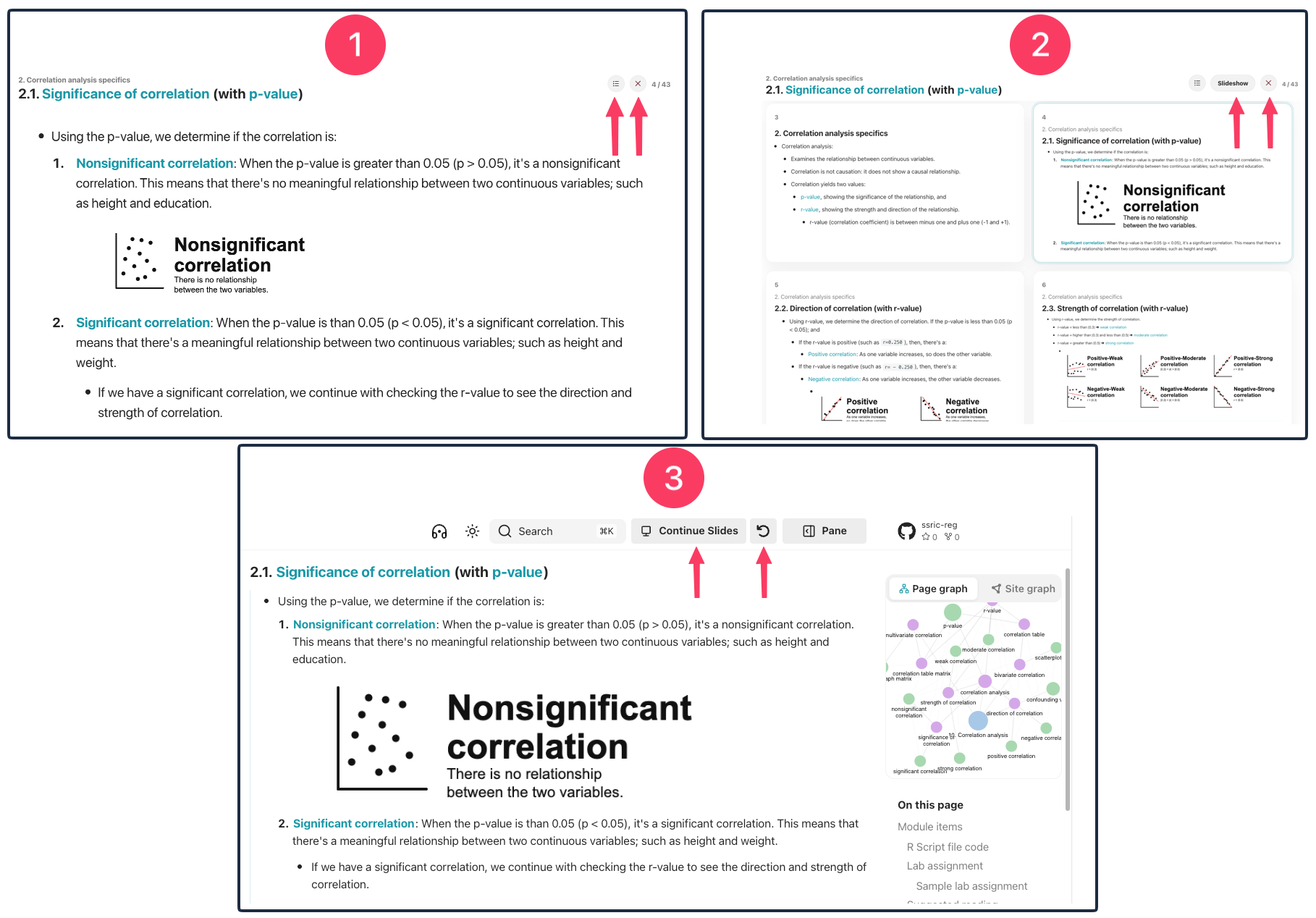
- Open a lesson page that has slides enabled.
- Click Slides in the header.
- The slideshow opens full-screen.
- Click burger menu to see the slide titles and change the slides
- Press Esc or click the close button to exit the full screen.
- Exiting full screen makes slides as scrollable cards.
- Click burger menu to see the slide titles and change the slides and open as full screen
- Scroll the slide cards and click the one to open as full screen
- Press Esc or click the close button to go back to the page content, at the same spot.
- Exiting from the scrollable cards view will land to the exact page content.
- Click "Continue slides" to return to the same slide.
- A small restart button (↻) appears next to Continue Slides. Click it to open a slideshow of a different page.
Enabling slides #settings
-
Slides are turned on and customized in [[zensical.toml]] file.
-
- Line 2: Default is
false.trueturns the slides feature. - Line 3: Sections or pages that may show slides.
"lessons""lessons/lesson-1.md"
- Line 4: Pages to remove from
include_paths. - Line 5: Smallest preferred text size. Dense slides may go smaller so everything stays visible.
- Line 6: Largest text size for short slides.
- Line 7: How much of the slide area short content should grow to fill (from
0.35to1.0).- Higher values use more of the screen; lower values leave more empty space.
- Line 8: Margins around slide content as percentages:
[top, right, bottom, left].- Smaller values give content more room. Each value can be
0through20.
- Smaller values give content more room. Each value can be
- Line 2: Default is
-
[[Preparing slides]]
- Slides are built from the module page content.
- There are two types of slides based on control.
[[Automatic slides]]
- The system decides slide boundaries automatically.
- Each major heading (H1, H2, H3) and its body content can become a slide.
- Long sections are split into several slides.
- Large items such as tables, code blocks, diagrams, and admonition boxes usually get their own slide.
- Long code lines keep the page layout and pan horizontally without wrapping or showing a scrollbar track.
- The page-style copy control remains visible at the right edge of slide code blocks.
- Slides appear in the same order as the content on the page.
- There is no way to exclude certain headings/sections.
[[Manual slides]] #settings
-
Exact control over what appears on each slide with following markers:
-
Marker Effect <!-- slide-break -->Opens a slide; the next <!-- slide-break -->closes it.
Content between those markers is one slide.<!-- slide-end -->Closes the current slide without starting another.
This is to omit sections and end the slideshow.<!-- slide-break click -->Lists items reveal one at a time on the next Right. <!-- slide-break step -->Treats each top-level as one step on the next Right. font=<!-- slide-break font=32px -->
Fixes the slide's text size (8pxto99px) instead of auto-fitting betweenfit_min_font_pxandfit_max_font_px.fill=<!-- slide-break fill=90% -->
Overridescontent_fillfor specific slides only.
Accepts35%to100%, or0.35to1.0.-
Combination #tip
- Options can be combined on one marker:
<!-- slide-break step font=30px fill=80% -->
- Options can be combined on one marker:
-
-